
A day
in the business.
Ten ordinary moments, from the first customer to closing time — and exactly what TallyMate does in each.
-
1Opening up
The business opens.
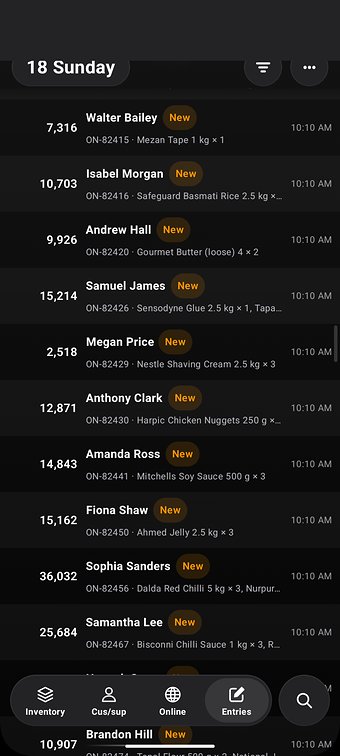
The cashier opens TallyMate. If staff are set up, the lock screen asks “Who is using TallyMate?”; each person taps their name and types their own password (the first time, they make it themselves). On a phone, Face ID or a fingerprint can unlock it. The Entries screen opens on today, with the date at the top (blue unless you chose another colour) and two columns: CASH and CREDIT.
-
2First customer
The first sale.
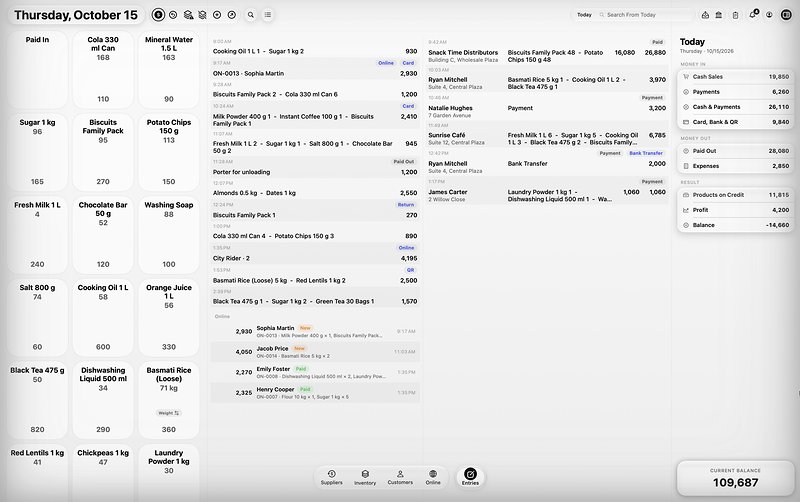
On the Mac or PC the product boxes are right on the Entries screen; on a phone, pull the bottom bar up and the sale window rises with your finger. Tap a product box to add one (or type how many), or scan its barcode. Products sold by weight or by money (“500 of sugar”) take a weight or an amount. The receipt builds on the side as you go. Type the cash handed over in the Cash box and TallyMate shows the Change. Paid by card instead? Choose Card, Bank Transfer or QR — or Split the bill. For a QR payment TallyMate can show your business’s QR code with the amount already filled in. Press Save (or Save & Send). The receipt gets its own number and barcode: print it on a 58 mm or 80 mm roll or A4, or send it by WhatsApp, Messages or email.
-
3A regular
A sale on credit.
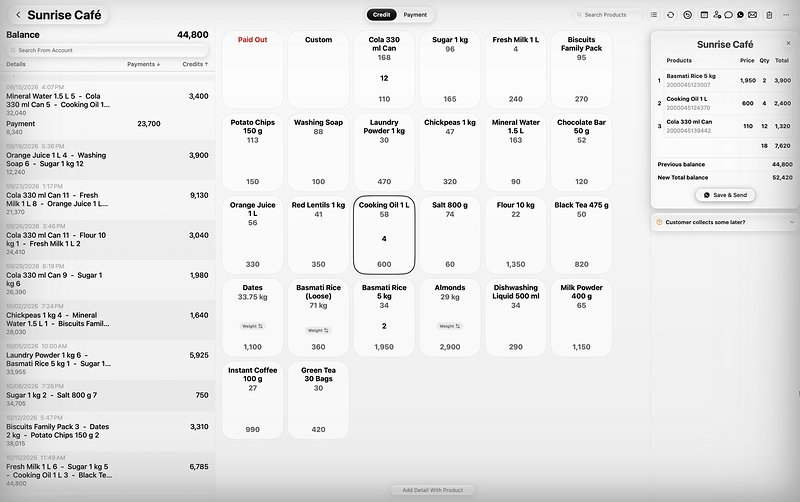
A regular customer takes goods and will pay at the end of the month. Open Customers, tap his name, and sell from his account: his price level (Retail, Wholesale or Special) and discount are used by themselves. The goods go on his account under Credit and his balance goes up. If it would pass his credit limit, TallyMate warns you first. Part of the goods will be collected later? Mark them as still to deliver: he is charged now and they wait for him as reserved stock.
-
4Money comes in
A payment arrives.
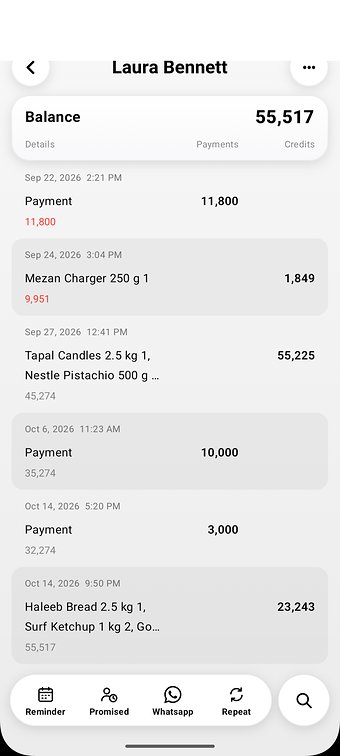
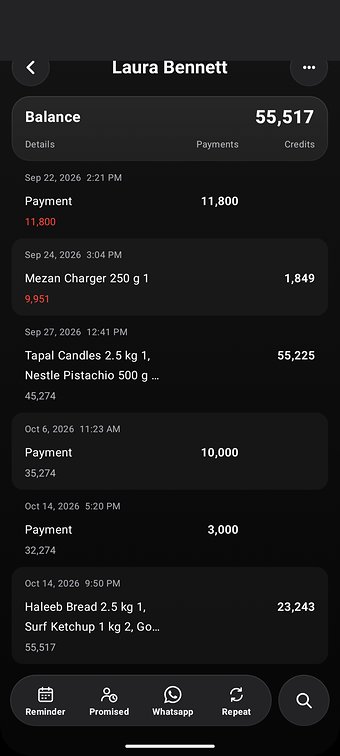
Another customer pays off part of his balance. On his account press the Payment button, type the amount, save. His receipt shows the previous balance, the payment and the new total balance — sent straight to his WhatsApp if you like.
-
5Money goes out
Tea, and the electricity bill.
Use Paid Out for cash leaving the drawer, or the Expenses button to file it under an expense name (Rent, Salaries, Bills…). Expenses come off the day’s balance and show in the Expenses Report. Money the owner puts in or takes out goes under Capital (Investment / Withdrawal), kept apart from trading.
Money out illustrationPaid Out
cash leaving the drawerTeaExpenses
Rent, Salaries, Bills…ElectricityCapital
kept apart from tradingInvestment / WithdrawalExpenses come off the day’s balance and show in the Expenses Report.
-
6Something comes back
A return.
A customer brings back two products from yesterday. Press Return, type or scan the number on his receipt, choose what comes back and whether it is Good (back on the shelf) or Damaged (written off), then give a Refund, an Exchange, a Credit note (a numbered slip he can pay with later) or, on an account, Take off balance. Returns after the return window need the owner’s approval.
Return illustrationFind the saleType or scan the receiptGoodDamagedRefundExchangeCredit noteTake off balanceGood goes back on the shelf; Damaged is written off. After the return window, the owner approves.
-
7Online
An order arrives on WhatsApp.
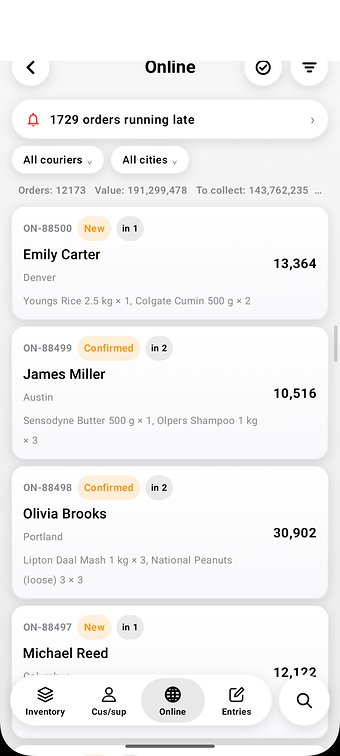
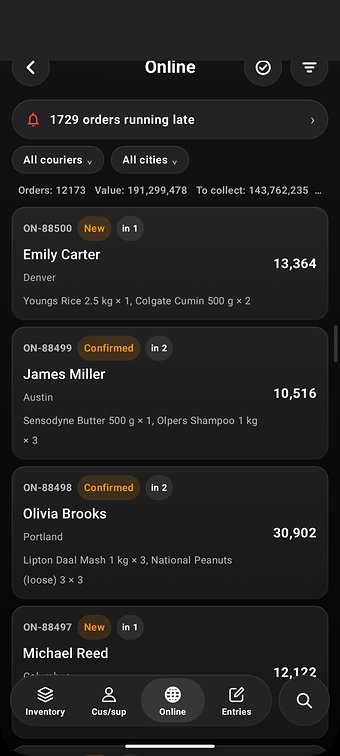
Copy the message and use Add many orders (paste messages): TallyMate finds the name, address, city, phone and products and makes the order, ready to check. It moves through its steps with one button each — Confirm, Mark packed, Hand to courier, Delivered, then Paid when the courier pays you (or Returned / Return received). Each step has a countdown and turns red when it runs late. Print the parcel label and the courier list, and send the buyer an update with the tracking link.
-
84 pm
Shift change.
The morning cashier presses End shift. TallyMate shows what the drawer should hold (“The book expects in the drawer”); she types the Cash you counted, and it says Matches, Short by or Over by. She can take money out (to the bank, to the owner), then Hand over the drawer to the next person, who types their own password to take it over. The owner sees every handover in the Shift report.
End shift illustrationThe book expects in the drawer✓Cash you countedtyped by the cashierMatchesShort byOver byHand overCard, bank and QR money is left out of what the drawer should hold.
-
9Any time
Checking today’s figures.
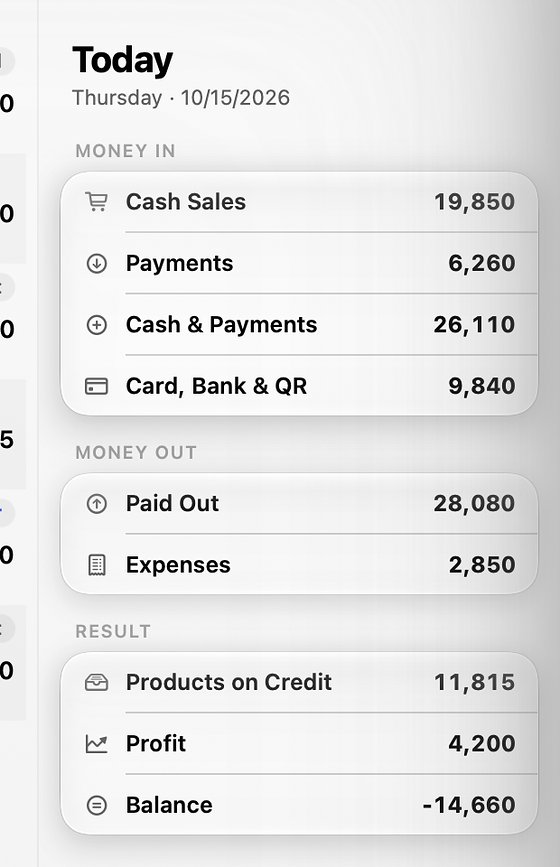
The owner swipes in the sidebar (from the right edge on a phone): Today’s Cash Sales, Today’s Payments, Today’s Paid Out, Today’s Products on Credit, Today’s Expenses, Today’s Profit, Card Bank & QR Today, Today’s Balance and Current Balance. The Dashboard shows sales, cash in hand, profit and money recovered today, who owes the most, and what needs attention — low stock, payments due, cheques due. Staff who may not see a figure simply don’t have it.
-
10Closing
Lights off. Book safe.
Customers due to pay today? The bell lists them, and Remind everyone due opens each reminder ready to send. TallyMate has already synced every entry to the cloud; once a day it also saves a locked copy of the book to your iCloud Drive, OneDrive or Google Drive — or press Back Up Now before you go home.
Backup illustrationSynced to the cloudall dayLocked copy to your driveonce a dayCopies keptnewest 14Last backup … — cloud ✓ · iCloud ✓Back Up Now


